
BigFoot Community Taxonomy Viewer
Quick start guide for viewing and commenting
The BigFoot community taxonomy viewer is set up to allow viewing and exploration on many global taxonomies. For some taxonomies, we also make the advanced commenting feature available to the filing community so they can read and share notes on the taxonomy usage. This is particularly useful when there are significant changes to the filing programme or the taxonomy. Comments can be viewed by others in the community and will be passed on to the taxonomy author.
Taxonomy currently inviting comments on the community viewer are:
- KVK iXBRL taxonomies (NL GAAP and IFRS versions)
1. Log in to BigFoot
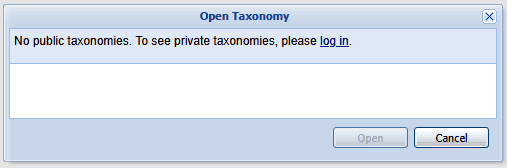
Navigate to BigFoot and, if you are not logged in, press “log in”.
Sign in or register with your email address or your one of the other sign in options.
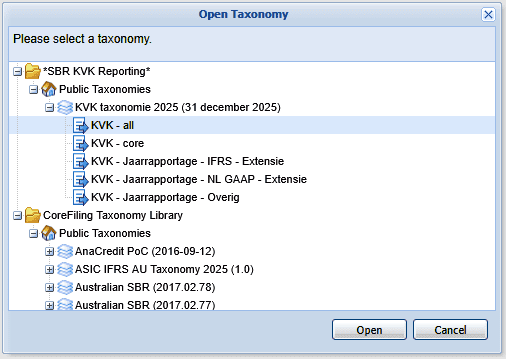
Select the taxonomy you wish to explore, this will be either the NL GAAP or IFRS taxonomy depending on the accouting standard you use.
2. Explore
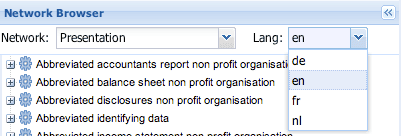
After selecting a taxonomy to view, a navigation tree will appear in the Network Browser on the left-hand side. You can use this to browse the concepts in the taxonomy. Some taxonomies have labels in multiple languages. For these concepts, you can select the language using the drop-down menu above the Network Browser.

When you select a concept, its details will be shown in the right-hand panel. This pane contains three tabs – Details, Relationships and Tree Locations – giving you access to the concept’s full definition.
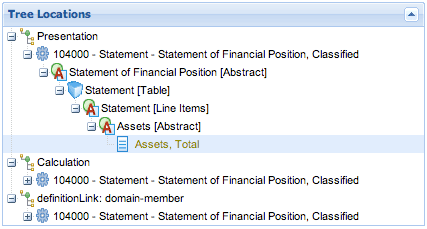
Concepts are often used in more than one place in a single XBRL taxonomy. The Tree Locations view is a powerful tool allowing you to find all occurrences of a concept quickly.
3. Comment

Wherever you see the speech bubble + icon in the top right, you can add a comment. Press the button and add your comment. It will be sent for moderation and shortly will become available for other community members to use.
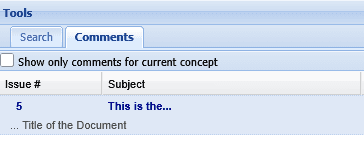
To view yours and other people’s comments, go to the comments view at the bottom of the screen. To view the details of an individual comment, select the comment in the view.